

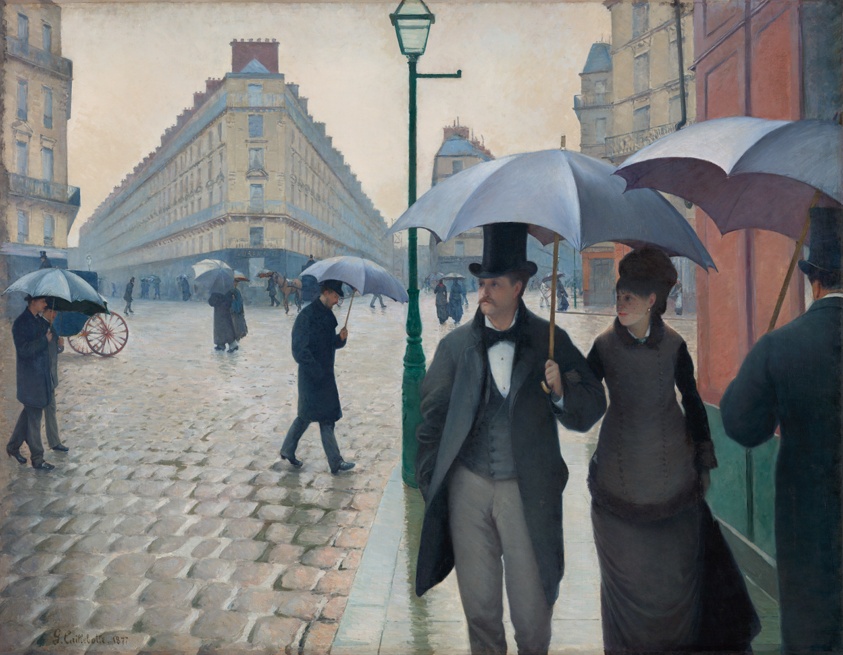
A common piece of advice is to write about what you know. But sometimes you have to write about the things you don’t know about in order to learn. So, this blog post is about how to caption and credit public domain images. Time for me to figure this out along with you.
Let’s say you find the perfect image—vintage, evocative, and legally free to use. If you’re like me, you sit there wondering how to credit the picture without cluttering your layout or messing up your piece’s mood. What to do?
Good question. Crediting public domain or Creative Commons images isn’t just about courtesy—it’s about transparency. It also saves you from awkward “did you have permission for that?” emails later. Luckily, it’s easy once you know the rules.
Start by figuring out your license type:
- Public Domain (PD or CC0): You can use it freely for any purpose, even commercially. Attribution isn’t legally required, but it’s always polite.
- Creative Commons (CC-BY or CC-BY-SA): You must credit the creator and often link to the license. “SA” means you need to share derivative works under the same terms.
- Noncommercial (CC-NC): You can’t use it for anything that earns money (so skip these for your author website or book).
When in doubt, click through to the image’s source page and look for the licensing line.
Next, add a simple, clear credit by following the TASL rule—Title, Author, Source, License. For a blog caption, you might write “Paris Street, Rainy Day” by Gustave Caillebotte, 1877. Public domain via The Art Institute of Chicago. If space is tight, abbreviate the caption to read: Image: Gustave Caillebotte / Art Institute of Chicago (Public Domain). When crediting Creative Commons, just add Photo by Jane Doe via Flickr (CC BY 4.0).
I promise I added a caption for the featured image above, but it’s just not showing up. Here’s what AI suggested: To caption a WordPress featured image, first add the caption text to the image in the Media Library. Then, either click “Add caption” in the post editor below the featured image block or go to your theme’s Customizer to enable the display of the caption on the front end. I’m still working on that, so stay tuned.
While credits don’t have to scream for attention, they do need to be visible. To make them unobtrusive, place them:
- Below or going up the right side of the image in smaller text
- In a photo credits section at the end of your article
- In an acknowledgments section (for books or print materials)
Online, you’ll also want to hyperlink the source name to the original page. That’s both courteous and user-friendly.
But what about when you’ve cropped or otherwise edited an image? Yup. You’ll still want to provide a credit. Just add the words “modified from,” as in Modified from “Starry Night” by Vincent van Gogh (Public Domain, via Wikimedia Commons).
However you decide to credit the images you use on your website or blog, or in your books, newsletters, and marketing materials, be consistent to achieve a professional look.
Photo credit:
“Paris Street, Rainy Day” by Gustave Caillebotte, 1877. Public domain via The Art Institute of Chicago.











0 Comments